Things I’ve learned, published for the public benefit
Hope This Helps header image

An audiophile’s look at the audio stack in Windows Vista and 7

If you are an audiophile who uses a PC as a source in your audio system, you’re probably aware of the fact that Windows Vista introduced a brand-new audio engine to replace the much hated KMixer of Windows XP. In my opinion, there are a few reasons why audiophiles should be happy with this change:

  • The new audio stack automatically upconverts all streams to a 32-bit floating-point sample depth (the same that is used in professional studios) and mixes them with the same precision. Because of the amount of headroom that comes with using 32-bit floats, there is no more clipping when playing two samples at the same time. There is also no loss of resolution when you lower the volume of a stream (see below).
  • The Vista/Win7 audio engine automatically feeds your sound card with the highest-quality output stream that it can handle, which is usually 24 bits per sample. Perhaps you’re wondering why you should care, given that most music uses only 16 bits per sample. Suppose you’re playing a 16-bit song with a digital volume control set to 10%. This corresponds to dividing each sample by 10. Now let’s assume the song contains the following two adjacent samples: 41 and 48. In an ideal world, after the volume control we would get 4.1 and 4.8. However, if the output stream has a 16-bit depth just like the input stream, then both output samples will have to be truncated to 4. There is now no difference between the two samples, which means we have lost some resolution. But if we can have an output stream with 24 bits per sample, for each 16-bit level we get 28 = 256 additional (“fractional”) levels, so we can still preserve the difference between the two attenuated samples. In fact, we can have ≈4.1016 and ≈4.8008, which is within 0.04% of the “ideal” samples of 4.1 and 4.8.
  • Don’t you hate it when you change the volume in your movie player or instant messaging software and instead of changing its own volume, it changes your system volume? Or have you ever used an application with its own poorly implemented volume control (iTunes, I’m pointing at you!)? Well, these abominations should now be behind us. In Vista and Win7, each application gets its own audio stream (or streams) and a separate high-quality volume control, so there should no longer be any reason for application vendors to mess with the system volume or roll their own and botch the job.

So Windows Vista and Windows 7 upconvert all your samples to 32-bit floats and mix them with 32-bit precision into an output stream that, by default, has the highest bit depth that your hardware can handle. The output bit depth is customizable; you can change it in the properties of your audio device. If you change it e.g. to 16 bits, the audio engine will still use 32-bit floats for internal processing — it will just downconvert the resulting stream to 16 bits before sending it to your device.

Now, what about the sample rate? You can set the output sample rate in the audio device properties window, but is there also some internal sample rate that the Windows audio engine uses regardless of your setting? For example, does it upsample your 44.1 kHz songs to 96 or 128 kHz? Unlike the upconverting from 16-bit integers to 32-bit floats (which should be completely lossless), this could potentially introduce some distortion as going from 44.1 kHz to 96 or 128 kHz requires at least some interpolation.

I couldn’t find the answer to this question anywhere, so I wrote to Larry Osterman, who developed the Vista and Win7 audio stacks at Microsoft. His answer was that the sample rate that the engine uses is the one that the user specifies in the Properties window. The default sample rate is chosen by the audio driver (44.1 kHz on most devices). So if your music has a sample rate of 44.1 kHz, you can choose that setting and no sample rate conversion will take place. (Of course, any 48 kHz and higher samples will then be downsampled to 44.1 kHz.)

There is some interesting technical information on the Windows Vista audio stack in this Channel9 video.

→ 28 Comments

Setting up cross-domain tracking of e-commerce transactions with Google Analytics and FastSpring

The problem

You have a website running Google Analytics (with the latest tracking code). You are selling widgets using a 3rd party online store provided by FastSpring.

You would like to open Google Analytics, display a list of all your sales, and be able to see where your paying customers are coming from. You want to know what websites they are being referred from, what search keywords they are using to find your site, and which pages on your site they are landing on. You also want to know which keywords (organic or paid) and which landing pages are earning you the most money.

The non-solution

FastSpring boasts easy Google Analytics integration, so getting your e-commerce transactions to show up in your Analytics reports is a piece of cake. Pretty much all you need to do is enter your Analytics profile number in the FastSpring management panel and set “E-commerce website” to “Yes” in your profile settings, if you haven’t done so already.

You can now see all your sales in Analytics. However, when you start looking at the referrals and keywords that led to the sales, you will get a nasty surprise: All your sales appear as though they were referred from your site! Instead of “cheap widgets”, or whatever keywords your customers use to find your site, you’ll see “(direct)”. Instead of Google, you’ll see “yourwidgetsite.com”, or whatever you called your silly widget site. This will not stand!

Here’s why Analytics loses track of the referral information: The Google Analytics code on your website’s pages recognizes visitors by a cookie which stores a unique visitor ID. However, this cookie is assigned to your domain (yourwidgetsite.com). When a visitor leaves your site and enters your FastSpring store (at sites.fastspring.com), the Google Analytics code FastSpring added to your store pages does not have access to that cookie. So what it does is create a brand-new tracking cookie. And the only information it has is the referring page on yourwidgetsite.com, which is why the transaction will be shown as having been referred from yourwidgetsite.com.

The proper solution

1.

First, change the Google Analytics code on all your pages to:

<script type="text/javascript">
var gaJsHost = (("https:" == document.location.protocol) ? "https://ssl." : "http://www.");
document.write(unescape("%3Cscript src='" + gaJsHost + "google-analytics.com/ga.js' type='text/javascript'%3E%3C/script%3E"));
</script>
<script type="text/javascript">
var pageTracker = _gat._getTracker("UA-XXXXXX-1");
pageTracker._setAllowHash(false);
pageTracker._setAllowLinker(true);
pageTracker._trackPageview();
</script>

Of course, you should replace “UA-XXXXXX-1” with your actual profile ID. If your website consists of multiple subdomains that you want to track under a single Analytics profile, you should also add this line:

pageTracker._setDomainName("yourwidgetsite.com");

This line will ensure that GA will use only one cookie (for yourwidgetsite.com) rather than a separate cookie for each subdomain.

It is critical that you use the exact same code on all your pages. Google Analytics is very sensitive and will set a new cookie when it detects the slightest change in the tracking code from one page to another. When this happens, you lose information on what your customer was doing before.

Google’s official help tells you to use pageTracker._setDomainName(“none”) instead of pageTracker._setAllowHash(false), but this solution is not recommended by the gurus at the Analytics Help forum. Caleb Whitmore says:

setDomainName(“none”) will make GA set the cookies to the full, EXPLICIT domain of the current hostname.  Thus, if someone is on “mysite.com” and then clicks to a page on “www.mysite.com” they’ll get new cookies on the “www” domain, or vice-versa.”

2.

Add the exact same code (with the exception of the _setDomainName line) to your FastSpring store pages. First, you need to disable Google Analytics tracking in the FastSpring management panel. FastSpring does not let you customize the tracking code and they use a very old version of the code anyway (from back when Google Analytics was known as Urchin).

You will need to insert the proper GA code into your store page template. In the FastSpring panel, go to “Styles” and create a new style (if you haven’t created one before). You will need a ZIP file with your current style files. You can get this file if you e-mail FastSpring. Unzip the file, then open a file named “window.xhtml”. Add the tracking code described above (with the exception of the _setDomainName line) right after the <body> tag.

3.

Change all the links from yourwidgetsite.com to your store at FastSpring to look like this:

<a href="https://sites.fastspring.com/..."
onClick="pageTracker._link(this.href, true); return false;">Buy my widget</a>

This code will take all the information stored in the GA tracking cookie for yourwidgetsite.com and append it to the URL query string used to navigate to your online store. The GA tracking code on the target store page will retrieve all this data from the query string and put it into the new cookie (assigned to sites.fastspring.com) that it will create. That way, all the information about your visitor’s previous activities will be preserved.

Remember that for the new cookie to get this information, every single link to your store must look as shown above.

4.

Now the GA code on your store pages has access to all the interesting information on search keywords, landing pages, etc. The only remaining problem is that no transactions are being recorded, since you disabled FastSpring’s built-in Analytics support in step 2. We will fix that now.

In the FastSpring management panel, go to “External Tracking”. This is where you previously disabled Google Analytics tracking. Now you are going to turn the tracking back on, but with the updated Analytics code.

Click “Add Custom Tracking Method”. Name it something like “Google Analytics (new code)”. Choose “Free-form XHTML Fragment”. Paste the following code into the text box:

<script type="text/javascript">
try {
pageTracker._addTrans(
"#{order.reference}",          // Order ID
"",                        // Affiliation
"#{order.subTotal.textValue}", // Total
"#{order.tax.textValue}",      // Tax
"",                            // Shipping
"#{order.address.city}",       // City
"#{order.address.region}",     // State
"#{order.address.country}"     // Country
);


<repeat var="item" value="#{order.allItems}">
pageTracker._addItem(
"#{order.reference}",     // Order ID
"#{item.productName}",   // SKU
"#{item.productName}",    // Product Name
"",                      // Category
"#{item.priceTotal.textValue}",   // Price
"#{item.quantity}"        // Quantity
);
</repeat>

pageTracker._trackTrans();
} catch(err) { }
</script>

Whereas the code you added to window.xhtml (your store Style) is inserted into every page of your FastSpring store, the above code appears only on the order confirmation page (near the bottom). It sends some basic transaction data to Analytics, then it takes each order item and sends information about it to Analytics as well (the <repeat> loop).

A few comments are in order:

  • FastSpring has no SKU’s or product ID’s, but Analytics needs this parameter — otherwise it does not record all the line items in an order correctly. So the best solution is to pass the product name as the SKU.
  • #{order.subTotal.textValue} is passed as the “Total”, because the order amount before taxes and shipping is probably what you are interested in. If you’d rather see the total amount paid by the customer in your Analytics reports, you can change it to #{order.total.textValue}.
  • “Shipping” is left empty because FastSpring does not provide that variable.

Neither the above variables nor the <repeat> construct are documented anywhere in the manuals that FastSpring provides to sellers. I got this information from Ryan Dewell, the VP of Software Development at FastSpring. He has mentioned to me that FastSpring will be updating its Google Analytics support, so it is possible that full Analytics integration will eventually be possible without all the hacking described here.

$latex ihbarfrac{partial}{partial t}left|Psi(t)right>=Hleft|Psi(t)right>$

→ 6 Comments

How to clean eyeglasses

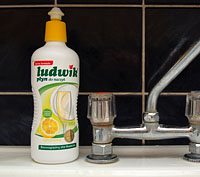
Picture of Ludwik dishwashing liquidI’ve worn eyeglasses since I was 3 years old. A few years ago, I started getting annoyed with the dust and grease that keep building up on my glasses. Maybe it’s old-age grumpiness kicking in, or maybe it’s because I started to use LCD displays whose immaculate picture quality sensitized me to any blurriness between the LCD matrix and my retina.

Anyway, I started cleaning my glasses regularly. The problem was that I couldn’t figure out a good cleaning technique. First, I tried washing my glasses with running water and then drying them up with towels. That didn’t work so well for the grease and the towels (either cloth or paper) would leave tons of lint on my glasses. So I bought a professional microfiber cloth, the same kind that I use for cleaning photographic lenses, and some isopropyl alcohol (isopropanol), the stuff that they put in those overpriced “lens cleaning kits” you’ll find in the photography section of your electronics store. That was a lot better than my previous technique, but the alcohol would not clean off all the grease, which was impossible to remove completely with the cloth.

Well, I’ve finally figured it out. (Actually, I wish I had. I learned about this technique from my optician.) The answer is dishwashing liquid (AKA dish soap).

  1. Rinse your glasses under running water.
  2. Put a bit of dishwashing liquid on one of the lenses, then use your fingers to gently rub the liquid on both sides of both lenses.
  3. Rinse glasses again to remove the dish soap. You don’t need to use your fingers to get the dish soap off – just use running water. You should be looking at perfectly clean lenses with a few drops of water on them. If there’s any grease or other spots, repeat steps 2 and 3.
  4. Use a microfiber cloth to gently clean off remaining water drops. Use light touches – there might be small pieces of dirt on the cloth and if you rub it too hard, they might scratch the lenses. The microfiber cloth leaves no fluff, so your glasses should be perfectly clean.

It’s really a perfect combination. The dish soap dissolves all the grease, so you don’t get any smudges when you use the microfiber cloth. The microfiber cloth removes the remaining water drops and (non-greasy) stains made by evaporating water, and leaves no lint. The result: pristine-looking glasses in one minute.

What’s more, this technique is fairly convenient to use. Many online how-tos recommend special eyeglass-cleaning sprays or vinegar, which may be expensive or unavailable. On the other hand, most people have dish soap in their kitchen, so the only special accessory you need is a microfiber cloth, which costs $7 (for a top-quality one) and can be re-used for years. And even that isn’t really necessary, as paper towels or tissues work almost as well.

→ 54 Comments

Google Toolbar shows incorrect PageRank for HTTPS pages

If you are a webmaster looking to improve your Google ranking by arranging links from high-PageRank sites, you should be wary of pages whose URL starts with “https” (secure pages). As I have found, the Google Toolbar reports incorrect (usually inflated) PageRank for such pages, so that a secure page which appears to have a PageRank of 8 may in fact have a much lower PR or may not even be indexed at all.

When you visit a secure (https) page, the PageRank you see in the Google Toolbar is not the PageRank of the page — instead, the toolbar shows you the PR of the root page of the domain.

  • https://addons.mozilla.org/en-US/firefox/user/1754094 is the user info page for Jose Bolanos, one of the many developers at the Mozilla add-on community website. In both IE and Firefox, it appears to have a PageRank of 8. Now, if that were true, Jose would truly have a reason to smile. Unfortunately for him, what the toolbar is actually showing is the PageRank of https://addons.mozilla.org, the homepage of the add-ons site. If you try any other page on the site (e.g. this one or this one), you will see that they all have a PR of 8.
  • The Google Adsense login page (https://www.google.com/adsense/login/en_US/) appears to have a PR of 10 (higher than adobe.com) not because it has so many incoming links or because Google has given it an artificial boost — it’s just that the Google Toolbar is reporting the PR of google.com.
  • This obscure page at the Michigan State University and all its subpages appear to have a PR of 8. Of course, by now we know that what we’re really seeing is the PR of the MSU homepage (www.msu.edu) and the actual PR of the page is unknown.

The bug seems to affect the latest versions of the Google Toolbar for IE and Firefox. However, I have seen an earlier version of the toolbar that did not suffer from this problem, so I believe the issue is version-dependent.

→ 7 Comments

Should we care about ABX test results?

Policy no. 8 in the Terms of Service of the respected audiophile community Hydrogenaudio states:

8. All members that put forth a statement concerning subjective sound quality, must — to the best of their ability — provide objective support for their claims. Acceptable means of support are double blind listening tests (ABX or ABC/HR) demonstrating that the member can discern a difference perceptually, together with a test sample to allow others to reproduce their findings.

What a breath of fresh air. Other audio forums are full of snake-oil-peddling and Kool-Aid-drinking evangelists who go on and on about how replacing $200 speaker wires with $400 speaker wires “really opened up the soundstage and made the upper-midrange come alive”. The people at Hydrogenaudio know that such claims demand proper scientific evidence. How nice to see that they dismiss subjective nonsense and rely instead on the ultimate authority of ABX tests, which really tell us what makes a difference and what doesn’t.

Except that ABX tests don’t measure what really matters to us. ABX tests tell us whether we can hear a difference between A and B. What we really want to know, however, is whether A is as good as B.

1.

“Wait a second!”, I hear you exclaim. “Surely if I cannot tell A from B, then for all intents and purposes, A is as good as B and vice versa. If you can’t see the difference, why pay more?

Actually, there could be tons of reasons. To take a somewhat contrived example, suppose I magically replaced the body of your car with one that were less resistant to corrosion, leaving all the other features of your vehicle intact. Looking at the car and driving it, you would not notice any difference. Even if I gave you a chance to choose between your original car and the doctored one, they would seem identical to you and you could choose either of them. However, if you were to choose the one I tampered with, five years later your vehicle’s body would be covered in spots of rust.

The obvious lesson here is that “not seeing a difference” does not guarantee that A is as good as B. Choosing one thing over another can have consequences that are hard to detect in a test because they are delayed, subtle, or so odd-ball that no one even thinks to record them during the test.

But how is this relevant to listening tests? Assuming that music affects us through our hearing, how could we be affected by differences that we cannot hear?

In his fascinating book Burning House: Unlocking the Mysteries of the Brain, Jay Ingram describes the case of a 49-year-old woman suffering from a condition called hemispatial neglect (the case was researched by neuropsychologists John Marshall and Peter Halligan). Patients with hemispatial neglect are unable to perceive one (usually the left) side of the objects they see. When asked to copy drawings, they draw only one side; when reading out words, they read them only in half (e.g. they read simile as mile).

burning-houseIn Marshall and Halligan’s experiment, the woman was given two simple drawings showing two houses. In one of the drawings, the left side of the house was covered in flames and smoke; the houses looked the same otherwise. Since the flames were located on the left side, the patient was unable to see them and claimed to see no difference between the drawings. When Marshall and Halligan asked her which of the houses she would rather live in, she replied — rather unsurprisingly — that it was a silly question, given that the houses were identical.

However, when the experimenters persuaded her to make a choice anyway, she picked the flameless house 14 out of 17 times, all the time insisting that both houses look the same.

Marshall and Halligan’s experiment shows (as do other well-known psychological experiments, including those pertaining to subliminal messages) that it is possible for information to be in a part of the brain where it is inaccessible to conscious processes. This information can influence one’s state of mind and even take part in decision-making processes without one realizing it.

If people can be affected by information that they don’t even know is there, then who says they cannot be affected by inaudible differences between an MP3 and a CD? Failing an ABX test tells you that you are unable to consciously tell the difference between two music samples. It does not mean that the information isn’t in your brain somewhere — it just means that your conscious processes cannot access it.

So the fact that you cannot tell the difference between an MP3 and a CD in an ABX test does not mean that an MP3 is as good as a CD. Who knows? Maybe listening to MP3s causes more fatigue in the long run. Maybe it makes you get bored with your music more quickly. Or maybe the opposite is true and MP3s are actually better. We can formulate and test all sorts of plausible hypotheses — the point is, an ABX test which shows no audible difference is not the end of the discussion.

2.

I have shown that the lack of audible differences between A and B in an ABX test does not imply that A is as good as B. Before you read this post as an apology for lossless audio formats, here is a statement that will surely upset hard-core audiophiles:

The fact that you can tell the difference between an MP3 and a CD in an ABX test does not mean that the MP3 is worse than a CD.

First of all, the differences between MP3s encoded at mainstream bitrates (128 kbps and 192 kbps) and original recordings are really subtle and can be detected only under special conditions (quiet environment, good equipment, full listener concentration, direct comparisons of short samples). Because the differences are so tiny, we cannot automatically assume that it is the uncompressed version that sounds better. Subtle compression artifacts such as slightly reduced sharpness of attacks on short, loud sounds may in fact be preferred by some listeners in a direct comparison.

Secondly, even if we found that the uncompressed version is preferred by listeners, that wouldn’t necessarily mean that it is better. People prefer sitting in front of the TV to exercising, but the latter might make them feel much better overall. If it were discovered, for example, that compressed music is less tiring to listen to (this is of course pure speculation), then that fact might outweigh any preference for uncompressed sound in blind tests.

Summary

The relevance of ABX tests to the lives of music lovers is questionable. Neither does the absence of audible differences imply equal quality, nor does the presence of audible differences imply that the compressed version is inferior. Rather than being the argument to end all debate, the results of ABX tests are just one data point and the relative strengths of various audio formats may well be put in a new light by further research.

→ 21 Comments