Things I’ve learned, published for the public benefit
Hope This Helps header image

Blind-testing MP3 compression

Among music listeners, the use of lossy audio compression technologies such as MP3 is a controversial topic. On one side, we have the masses who are glad to listen to their favorite tunes on $20 speakers connected to their PC’s onboard audio device and couldn’t care less what bitrate MP3s they get as long as the sound quality is better than FM radio. On another side, we have the quasi-audiophiles (not true audiophiles, of course, as those would never touch anything other than a high-quality CD or LP player properly matched to the amplifier) who stick to lossless formats like FLAC due to MP3’s alleged imperfections.

If I considered myself part of either group, my life would be easy, as I would know exactly what to do. Unfortunately, I fall somewhere in between. I appreciate music played through good equipment and I own what could be described as a budget audiophile system. On the other hand, I am not prepared to follow the lead of the hard-core lossless format advocates, who keep repeating how bad MP3s sound, yet do not offer anything in the way of objective evidence.

So, me being me, I had to come to my own conclusions about MP3 compression. Is it okay for me to listen to MP3s and if so, what bitrate is best? To answer these questions, I spent many hours doing so-called ABX listening tests.

What is an ABX test?

An ABX test works like this: You get four samples of the same musical passage: A, B, X and Y. A is the original (uncompressed) version. B is the compressed version. With X and Y, one is the original version (same as A), the other is the compressed version (same as B), and you don’t know which is which. You can listen to each version (A, B, X or Y) as many times as you like. You can select a short section of the passage and listen to it in each version. Your objective is to decide whether X = A (and Y = B) or X = B (and Y = A). If you can get a sufficient number of right answers (e.g. 7 times out of 7 or 9 times out of 10), you can conclude that there is an audible difference between the compressed sample and the original sample.

What I found

  1. The first thing I found was that telling the difference between a well-encoded 128 kbps MP3 and a WAV file is pretty damn hard. Since 128 kbps is really the lowest of the popular MP3 bitrates and it gets so much bad rap on forums like Head-Fi, I expected that it would fail miserably when confronted with the exquisite work of artists like Pink Floyd or Frank Sinatra. Not so. Amazingly, the Lame encoder set at 128 kbps (ABR, high quality encoding) held its own against pretty much anything I’d throw at it. The warm, deeply human quality of Gianna Nannini’s voice in Meravigliosa Creatura, the measured aggression of Metallica’s Blitzkrieg, the spacious guitar landscapes of Pink Floyd’s Pulse concert — it all sounded exactly the same after compression. There were no changes to the ambiance of the recording, the quality of the vocals, the sound of vowels and consonants, the spatial relationships between the instruments on the soundstage, or the ease with which individual instruments could be picked out.
  2. That said, MP3s at 128 kbps are not truly transparent. With some training, it is possible to distinguish them from original recordings in blind listening tests. My trick was to look for brief, sharp, loud sounds like beats or certain types of guitar sounds — I found that compression takes some of the edge off them. Typically, the difference is so subtle that successful identification is only possible with very short (a few seconds long) samples, a lot of concentration and a lot of going back and forth between the samples. Even then, the choice was rarely obvious for me; more often, making the decision felt like guessing. Which of the identical bass riffs I just heard seemed to carry more energy? A few times I was genuinely surprised that I was able to get such high ABX scores after being so unsure of my answers.
  3. With some effort, it is possible to find passages that make the difference between 128 kbps MP3 and uncompressed audio quite obvious. For me, it was just a matter of finding a sound that was sharp enough and short enough. In David Bowie’s Rock ‘n Roll Suicide, I used a passage where Bowie sings the word “song” in a particular, Dylanesque way (WAV file). Another example is a 1.2-seconds-long sample from Thom Yorke’s Harrowdown Hill (WAV file). The second beat in the sample is accompanied by a static-like click (clipping) that is considerably quieter in the compressed version. More samples that are “difficult” for the MP3 format can be found on the Lame project page (I found the “Castanets” sample especially revealing.).
  4. What about higher bitrates? As I increased the bitrate, the differences that were barely audible at 128 kbps became inaudible and the differences that were obvious became less obvious.
    • At 192 kbps, the Bowie and Yorke samples were still too much of a challenge and I was able to reliably tell the MP3 from the original, though with much less confidence and with more going back and forth between the two versions.
    • At 256 kbps (the highest bitrate I tested), I was not able to identify the MP3 version reliably — my ABX results were 7/10, 6/10 and 6/7, which can be put down to chance.

Caveats

Obviously, the results I got apply to my particular situation. If you have better equipment or better hearing, it is perfectly possible that you will be able to identify 256 kbps MP3s in a blind test. Conversely, if your equipment and/or hearing is worse, 192 kbps or even 128 kbps MP3s may sound transparent to you, even on “difficult” samples.

Test setup

  • Lame MP3 encoder version 3.98.2. I used Joint Stereo, High Quality, and variable bitrate encoding (ABR).
  • Foobar2000 player with ABX plugin. I used ReplayGain to equalize the volume between the MP3 and the original file — otherwise I found it too easy to tell the difference in ABX tests, since MP3 encoding seems to change the volume of the track somewhat.
  • Auzentech X-Meridian 7.1 — a well-respected audiophile-quality sound card with upgraded LM4562 op-amps.
  • RealCable copper jack-RCA interconnect.
  • Denon PMA-350SE amplifier — an entry-level audiophile receiver designed in England.
  • Sennheiser HD 25-1 II, top-of-the-line closed headphones with stock steel cable.

When I write that there was an audible difference in an ABX test, I mean that I got 7/7 or 9/10 correct answers without repeating the test.

Conclusions

If my goal was to use an MP3 bitrate that is indistinguishable from the original in a blind listening test, I would use 256 kbps, since that is the bitrate which I was unable to identify in a reliable way, despite repeated attempts on a variety of samples (including the “difficult” samples posted on the Lame website).

Whether I will actually standardize on 256 kbps, I’m not sure. The fact that a 192 kbps MP3 can be distinguished from the original in a contrived test (good equipment, quiet environment, high listener concentration, specially selected samples) does not mean it is unsuitable for real-world scenarios. Sure, at 192 kbps the music is not always identical to the original, but judging by my experiments, the difference affects less than 1% of my music (in a 100-second sample, more than 99 seconds would probably be transparent). Even if all I did was listen to this tiny proportion of my music, I would be in a position to perceive the difference less than 1% of the time (what percent of the time do I listen to music in a quiet environment? what percent of the time am I really focused on the music as opposed to other things I’m doing?). Besides, there is the rarely-posed question of whether “different” necessarily means “inferior” — it is quite possible that subtle compression artifacts might actually improve the perceived quality of music in some cases.
→ 25 Comments

Heartburn remedy: Ground flaxseed

About a month ago, I had a bad case of heartburn (AKA “acid indigestion”). After two days of having my stomach “burp” hydrochloric acid up my digestive tract, my esophagus (the part of the digestive tract that’s directly above the stomach) got inflamed and the pain would persist even when there was no acid.

I had to do something about it, and, of course, I turned to the Internet for advice. Here’s what I tried based on my research:

  • First, I started taking Maalox (mixture of magnesium hydroxide and aluminum hydroxide) chewable tablets. I also considered Manti, but it is 50% more expensive (in Poland at least) and the only difference is that it also contains simethicone, which helps relieve excess gas. Maalox helped neutralize the acid, providing instant relief, but I found I had to take it at least once every 2 hours. That didn’t look like a good remedy to me.
  • Some obscure sites recommended eating Jonagold apples for heartburn and GERD (gastroesophageal reflux disease), which is a kind of chronic heartburn. The idea is that apples contain pectin, which neutralizes stomach acid, and Jonagolds have the most pectin. I could find no reputable sources recommending apples as a remedy, but I thought it was worth a try. What I found was that the apples worked well — they actually provided longer-lasting relief than Maalox.

Even though I had found some ways to temporarily relieve my symptoms, my esophagus kept hurting. My mother suggested that I drink ground flaxseed, which she considers a good remedy for indigestion. Obviously, I scoffed at this advice. After all, I spent many hours researching heartburn on the Web and there was not one place that listed flaxseed as a possible remedy. Just to be sure, I ran a quick Google search, and — sure enough — absolutely no link between heartburn and flaxseed. Was I going to trust the whole of the world’s medical knowledge or my mother’s uneducated guesses?

Later that day, my mom made me some ground flaxseed with hot water, which I drank reluctantly, and — you guessed it — now the Internet shall have a page linking flaxseed and heartburn, because the flaxseed worked like a charm. Not only did it instantly kill the burning pain in my esophagus, it also seemed to neutralize the acid (or somehow shield my digestive tract from it). After days of popping Maalox, eating apples and watching my diet, I finally felt I was getting to the underlying cause of my condition. As an added bonus, I find the taste much better than Maalox. [Update: For a few more weeks, I still had the burping and an acidic taste in my mouth, especially after eating a considerable meal on a relatively empty stomach. But I had no burning pain, and I credit flaxseed with this change. Also, I did not have to take flaxseed every couple of hours, like antacids. In my case, the effects persisted for a really long time.]

Certainly I could be an isolated case, or I guess it could be some weird coincidence that I got better immediately after drinking the flaxseed. I don’t know if flaxseed will relieve your heartburn. But the results I experienced were too dramatic for me to keep this to myself.

The specific product that I used was Len mielony (podwójnie odolejony) made by Herbapol Lublin, a Polish manufacturer of herbal products. The name translates as Ground flaxseed (doubly de-oiled) and it is a sort of “diet” version of regular ground flaxseed with less flaxseed oil and fewer calories. It is a pretty fine powder with a faint smell reminiscent of pumpkin seeds. You prepare it by simply pouring a glass of hot water over a teaspoon of the flaxseed powder.

In Poland, ground flaxseed is readily available in most drugstores. I’m not sure how easily it can be purchased in other countries. You can probably get it in health food stores and the like. If you suffer from heartburn and you can find it, I suggest you give it a shot.

About heartburn causes: I don’t know what caused my episode. The Internet tells me that heartburn is commonly caused by an incompetence of the lower esophageal sphincter (LES), which is a kind of valve that connects the stomach with the esophagus. There is a long list of possible causes of this “incompetence” (eating too much, eating wrong, smoking, hiatus hernia, etc.). About the only thing that I was able to identify with was eating shortly before bedtime, and I have adjusted my habits accordingly. So far this seems to have helped, although I sometimes feel some acidity, which seems to occur when I make long breaks between meals.

→ 55 Comments

Review of the Dell 2209WA 22″ LCD monitor

So, the Eizo S2231W went back to the store (kudos to Proline.pl for a problem-free returns policy) and my search for a new 22″ LCD continued. After some more Web research, my attention turned to the recently released Dell 2209WA. According to the well-informed posters at hardforum.com, this display is supposed to be a big deal for three reasons:

  • It is a 22″ panel that doesn’t use cheap TN technology. Up to now, the only non-TN 22″ displays available had been the Eizo S2231W, the Lenovo L220x (which has ultra-tiny pixels), and the HP LP2275W.
  • It uses an IPS panel. IPS panels are currently considered better than TN and PVA/MVA panels. They are supposed to have better color fidelity and better viewing angles than other panel types.
  • It only costs $380 (in Poland), half the price of the Eizo S2231W!

Spurred by rave user reviews, I quickly found a store that carries these monitors in my city and made sure that the store would accept a return if I didn’t like the screen for whatever reason. Having spent the equivalent of $750 on the Eizo a few days before, I almost felt like I was getting the screen for free this time!

My expectations were pretty high. Everyone and their mother says that IPS panels are better than S-PVA, so despite the budget price of the Dell 2209WA, I expected the image quality to be close to that of the Eizo S2231W. I was concerned with quality control issues like uneven backlighting or bad pixels. But what was really on my mind was the text clarity: Would the Dell be as horrible as the S2231W? I hoped it would at least be in the same league as my trusted Eizo S1910.

Text quality

As soon as I unpacked the Dell 2209WA, I placed it next to my S1910 to check how the text looked. I could barely believe my eyes. Not only was the Dell in the same league as my old display — it was actually better! All the letters looked sharper even after I dialed down the sharpening control (the default setting of 50 amounts to subtle sharpening; to disable sharpening altogether, you need to set it at 40).

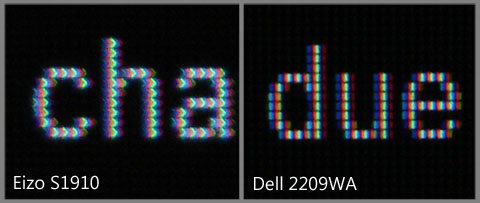
The explanation for the difference in favor of the Dell 2209WA turned out to be quite simple. The subpixels on the S1910 are not rectangular. Their shape looks a bit like this: “>”.  On the other hand, the Dell 2209WA has rectangular subpixels, which are better suited for the subpixel rendering used by ClearType.

Here is a photo which compares the pixel structure of the Eizo S1910 with the Dell 2209WA (sorry for the slightly out-of-focus S1910 photo):

ClearType text on Eizo S1910 and Dell 2209WA

Image quality

Now that the text sharpness concern is out of the way, let’s take a look at other issues:

  • Color reproduction: Side-by-side comparison with the Eizo S1910 shows that the Dell 2209WA displays slightly less saturated reds. The subjective color quality when viewing photographs in full-screen mode can only be described as very good.
  • Black level: Compared with the Eizo monitors that I have owned or tested, the black level is quite poor. Dark photographs and dark scenes in movies and games appear flooded with a dark shade of grey, which makes for a washed out, bland image. Eizo monitors, while incapable of displaying true blacks, still manage a good contrast ratio when showing dark images. The Eizos show a clear difference between e.g. RGB (0,0,0) and RGB (2,2,2), so the picture retains a lot of “punch”. On the Dell, the near-black shades are still distinguishable from each other; however, the perceived contrast is lower. From my point of view, the difference between the Dell 2209WA and an Eizo (S-)PVA screen is so large that I think I would rather watch a movie on a smaller 4:3 screen with a good black level than on a 16:10 screen with a black level of the 2209WA. Perhaps I will get used to the lower quality over time, but it’s certainly a big step backwards. (If you used a TN panel before, you will likely consider it a step forward. It’s all relative.) [Added Nov 2009: I have to confess I watch movies on the Dell most of the time, despite the poor black level. It still bothers me, but it turns out I’m too lazy to move my displays around every time I want to watch a movie. Plus I like the bigger size.]
  • Brightness: The display is definitely too bright. Most hardforum.com users seem to set the brightness at 15 out of 100; I set it at zero. Even at 0 brightness, I find the monitor unusable in an unlit room at night — I have to put an Ikea Grönö lamp with a 40-watt-equivalent bulb right behind it. This is a perfect example of unethical marketing trickery. Pumping up the brightness allows Dell to advertise an impressive contrast ratio, which looks good to ignorant consumers, but really means nothing in terms of picture quality. The real quality of an LCD is measured by its black level. If the black level is good, you don’t need dazzling, eye-burning whites to maintain a high contrast ratio. In fact, a critical user will quickly find two things: (1) that bright whites are very hard on the eyes, (2) that the “turbo-brightness” trick does not work anyway when dark images are being displayed.
  • “Wet screen” / Sparkle effect: Visible if you take a close look. Any more of it, and it would be a problem for me. I still don’t see why manufacturers can no longer make a proper anti-glare coating like that of my Eizo S1910 (made in 2005), which displays perfectly matte solid-color areas that don’t sparkle like they are covered in hair gel.
  • Color shifting: I expected my Eizo S2231W to have the infamous “Rainbow White” effect. It didn’t have it. But the Dell 2209WA seems to be a textbook example of it. The left side of the screen has a greenish tint, whereas the right side is slightly reddish. The effect was present on both the units that I tested. I don’t think it will be too much of a problem for me, but if you are sensitive to hue shifting, be warned. [A week later: I can just barely notice the color shifting, even on grey areas taking up the entire screen. I think it was more noticeable when I first tested it. Did the monitor “burn in” or something? Anyway, it didn’t bother me before, it bothers me even less now.]
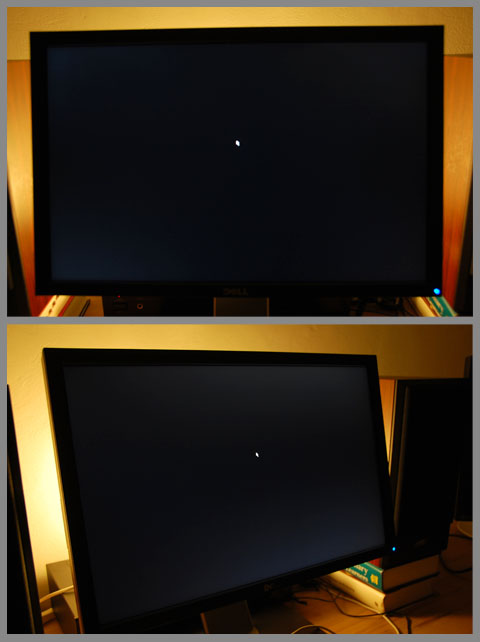
  • White glow / silvery shimmer: Along with the poor black level, this is a major problem with the Dell 2209WA. As I’m writing this, I’m smiling at all the people on the Internet who have written that IPS panels have better viewing angles than PVA panels. Sure, the colors don’t change as you change the viewing angle; instead, all the dark areas of the screen start to glow. For example, I normally sit about 70 centimeters from the screen. When playing a game with dark areas (e.g. BioShock or Mass Effect), I can always see bright, shimmering patches in the lower left and lower right corners of the screen. (That’s the best-case scenario after adjusting the monitor tilt.)  The effect goes away only when I sit 1 meter from the monitor, but then I have to be looking at the exact center of the panel. If I move my head 3 centimeters to the left or right, the white glow reappears. When the screen is completely black, the white glow is impossible to eliminate completely, unless I sit 1.5 meters or farther from the screen. Considering the fact that the blacks on the 2209WA are pretty grey anyway, this is a screen that has serious problems displaying dark images.
  • Angle-dependent white glow on the Dell 2209WA

    Angle-dependent white glow on the Dell 2209WA (from a distance of about 70 cm)

  • Backlight uniformity: There is a small bright patch adjacent to the top edge of the screen, about 13 cm from the right edge. I had my unit replaced because of this. The replacement unit has a slightly less visible patch in exactly the same location. I will not be replacing this unit, as it looks like this problem is present in the entire batch. Besides, this minor glitch is completely overpowered by the angle-dependent white glow described above.
  • Bad pixels: No bad pixels on either of the units I’ve tested. Pretty good.

Ergonomics

  • Heat / power issues: Internet wisdom says IPS panels consume more power than PVA panels and the Dell 2209WA seems to confirm this. The back of the monitor can get quite hot in normal operation — in contrast, the back of my other display (Eizo S1910) gets barely warm. On a warm summer day, the Dell can really add to the temperature in my small room. This could be the result of the absurdly bright backlight that Dell used in this display (see above).
  • Noise: This display is quite noisy. There is a pretty annoying high-pitched whine (1) right after you turn it on (for at least a few minutes), and (2) when it is displaying resolutions and refresh rates other than the native 1680 x 1050 @ 60 Hz. For example, there is a loud whine during the BIOS POST sequence, which uses character mode. During normal work in the native resolution and refresh rate, I can only hear a slight buzzing inverter noise at a distance of about 70 cm. This noise is not particularly annoying, but I can hear the buzzing go away when I turn off the monitor. This is in a quiet room at 2 am, when the loudest sound is the sound of my (quiet) hard drive and the near-silent fans in my PC (I’m a bit of a silent-PC enthusiast).  While at other times of day it is a complete non-issue, I sure don’t like the fact that my new monitor is a source of noise in my system. If you use stock cooling in your PC, don’t worry about the noise — you probably won’t hear it, as long as you stick to the native resolution.
  • Startup time: The backlight takes a long time to reach its proper brightness. When I turn on the Dell and my Eizo at the same time, the Dell is initially much darker than the Eizo and takes about 20 minutes to “catch up”.
  • Response time: Subjectively better than my old Eizo, but not by much.
  • 75 Hz refresh rate: The 2209WA supports a 75 Hz refresh rate, which means that it can display 25% more frames per second than a standard 60 Hz LCD. This makes for much more fluid motion in videogames. It really makes a difference in almost every game. However, turning on 75 Hz is tricky. You need to add a custom display mode in the nVidia control panel (if you have an nVidia card) or in Powerstrip (if you have an ATI card). Besides, when I set my monitor to anything over 60 Hz, the usual power supply noise it emits becomes much louder and turns into a high-pitched whine. It is quieter at some refresh rates than at others (in my case 73 Hz was relatively quiet), but it never completely goes away. In the end, I have decided to stick to 60 Hz.
  • Input lag: I did not notice anything troubling.
  • Anti-glare coating: Apart from the slight sparkle mentioned before, the anti-glare coating reflects a bit too much light. When I put it side-by-side with my Eizo, it is obvious that the Eizo is “more black”.

Summary

  • Text/office work: Very good. Text is very crisp, though brightness needs to be set at close to zero for comfortable work. If you like working with the lights out, I would recommend putting a 40 watt lamp right behind the monitor. You might also need to dial down the contrast, sacrificing color quality.
  • Photo viewing/editing: Satisfactory. Colors are well-reproduced and photos look basically the same as on much more expensive Eizo FlexScan LCDs. However, dark images look worse due to the combination of the mediocre black level and the white glow effect (you have to sit at a distance of 1 m or more to eliminate the latter defect).
  • Movie viewing/editing: Poor. Movies have a lot of dark, moody scenes, which look washed out on the 2209WA, even if you sit far away from the screen and position the monitor carefully to avoid the white glow effect. I’m afraid grey isn’t the new black…
  • Gaming: Mixed bag. Shooters and RPGs often use shadows to create atmosphere. On this monitor, these scenes have little depth. Brighter, more cheerful games look fine. On the other hand, the possibility of using a 75 Hz refresh rate (despite its relative noisiness) means that this monitor can display more fluid motion than typical LCDs.

My search for a 22-inch widescreen LCD that would match my 19″ Eizo S1910 has turned out to be a disappointment. Four years after I bought that display, there appears to exist no 22″ that is good at everything: text work, photo editing, movies and games.

That said, I will be keeping the Dell 2209WA. Why? First, I’m running out of options. The only non-TN 22″ that I have not yet tested is the HP LP2275W, but since it is equipped with an S-PVA panel, I expect it to have the same ClearType defect that made me return the Eizo S2231W.

Second, if I have to choose between a monitor that is suitable only for text work and a monitor that is only good for photos, movies and games (Eizo S2231W), I’m going to choose the former. After all, the amount of time I spend reading websites and working with documents far outweighs the combined time I spend working with Photoshop, watching movies or gaming. Last but not least, the Dell’s low price more than makes up for its shortcomings. If you cannot get a monitor that does it all, at least get an inexpensive monitor that satisfies most of your needs.

→ 35 Comments

Review of the Eizo S2231W 22″ LCD monitor

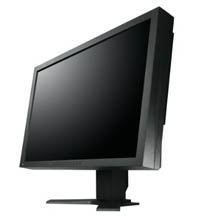
Eizo S2231WAfter years of using the excellent Eizo S1910 19″ display, I finally decided to look for a bigger, wider screen that would work better for watching movies and gaming while retaining the top-notch image quality of my current display. My needs are admittedly diverse: I work with text (whether I’m writing, coding or translating), I edit photographs in Photoshop and design Web pages, I watch movies, and I play games (non-competitively).
In short, I needed a display that is good for everything. On the plus side, I was ready to pay a premium price for it.

A few words on display size

Since text was so high up on my list of priorities, I decided to get a 22″ widescreen display. Anything smaller than that would obviously be too small to make a difference. How about a 24″ panel, then? Unfortunately, these babies have a serious disadvantage: their pixel size (0.27 mm) is much smaller than that of 19″ and 22″ panels (0.294 and 0.282, respectively).

In their desire to pump up the resolution, people often ignore this, but the fact is that reading text off a 24″ panel feels like reading off a 22″ panel that’s 10-20 centimeters farther from your eyes. On a 19-inch screen, the area occupied by each letter is 18.5% larger than on a 24-inch screen. As I have found out, pixel size really makes a difference in terms of comfort, and, having had to return an otherwise perfectly good Eizo S2431W for this very reason, I won’t be going anywhere near a 24-inch LCD.

The only other display diagonals with a decent pixel size are 26″ and 27″. The problem is that real-world LCDs of this size are not the slender, stylish ballerinas of catalogue photos. They are fat, sweaty sumo fighters that guzzle a ton of electricity and give off huge amounts of heat. I’m really not sure I want to share my modest workspace with one. So 22 inches it is.

Enter the Eizo S2231W

When the package with the Eizo S2231W arrived at my doorstep, I was quite uneasy. Having spent a great deal of time reading through relevant posts on the prad.de forum, I expected a lot of things to be wrong. Users reported a type of backlight bleed where a completely black screen displays patches of light in all four corners, forming a pattern in the shape of an incomplete X (this is called “X-lighting” on prad.de). Another frequently reported anomaly, jokingly called “Rainbow White” by prad.de users, means that large white or grey areas (such as a white page) change hue from the left to the right, appearing with a greenish or reddish tint, depending on which side of the screen you’re looking at. Furthermore, I knew that large panels often have bad pixels (the S2431W I bought last year had several stuck subpixels). In short, I expected my monitor to have its flaws. I just hoped that they wouldn’t be too severe.

First things first

  • Bad pixels: None! Tested with LCDtest on white, red, green, blue and black. Quite a surprise.
  • “X-lighting”: Definitely present, but at normal brightness settings (<60%), I needed very controlled conditions to see it: the room needed to be completely dark (maybe with a small light) and the screen had to be almost completely black. As a test, I tried watching the widest-aspect movie I could find (to make the horizontal black bars as large as possible) in a completely dark room. I could locate the bright patches if I wanted to, but when I was simply watching the film, they did not detract from the viewing experience. Big relief here.
  • “Rainbow White”: There was really no color shift to speak of, even with white or grey areas covering the entire screen. Perhaps Eizo have improved their manufacturing process? (My monitor was manufactured in October 2008.)
  • “Crystal effect” AKA “wet screen”: Most anti-glare coatings on recent LCDs exhibit a somewhat distracting sparkle effect, which is most pronounced when viewing solid-color areas. The effect changes depending on the viewing angle and looks very much like a wet screen. The Eizo S2231W is no exception, but the effect is so tiny that in normal usage I would often wonder if it was there at all. In other words, if the effect was any smaller, you’d have to say that it doesn’t exist.

Gargantuan disappointment: Text looks like crap

Before I got the Eizo S2231W, I did not realize text clarity was even a meaningful category for LCDs. I mean, we’re talking about a matrix of perfect, square pixels. How can an LCD, running in its native resolution over a DVI connection, possibly be blurry?

Unfortunately, the Eizo S2231W opened my eyes as to how bad text can look on an LCD. At first, I thought it was the smaller pixel size. Then, I thought my eyes were tired from using the computer for a long time. Finally, I put the monitor right next to my S1910, and I couldn’t believe what I saw. The letters on the S1910 looked razor-sharp in comparison with the S2231W! What’s more, I discovered that text on the S2231W has a truly insidious quality: it looks fuzzy, but it looks like your eyes are just out of focus, so you try to focus your eyes, but you never succeed. I found this extremely painful, and I simply couldn’t bear reading anything off the S2231W. It’s so bad I wouldn’t even use this monitor as my secondary display in a dual-monitor setup. I’d rather use my 10-year-old Philips CRT.

How could this be? Here’s a plausible explanation: The S2231W is equipped with a S-PVA panel. An S-PVA panel is different from the PVA panel of my S1910. In a PVA panel, each pixel is a square composed of three subpixels (red, green and blue). In an S-PVA panel, each subpixel is further divided into three parts. When a red subpixel is supposed to display a dark shade of red, on a PVA panel, the whole subpixel turns dark-red. On an S-PVA panel, the middle segment of the subpixel turns off entirely, and the remaining two segments turn a sort of darkish red.

According to Samsung, who developed this technology, this improves the viewing angles and the contrast ratio of the display. It also completely messes up ClearType. You see, when you have ClearType on (and who doesn’t nowadays?), text on your screen is made not only of full-size black pixels, but also of individual red, green and blue subpixels (here is a good explanation of how ClearType works). Because subpixels are smaller than full pixels, one can add quite a bit of detail to each letter by lighting subpixels at the edges of letters.

With an S-PVA panel, this method breaks down. When ClearType tries to light a dark-red pixel at the edge of a letter, an S-PVA panel does not display a single red dot like it’s supposed to — it displays two smaller dots that are a tiny distance apart. This makes the edges of letters fuzzy, causing eye fatigue.

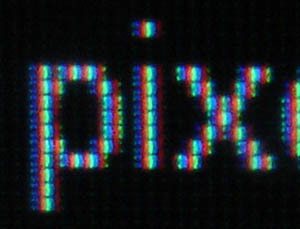
Here’s what ClearType-enhanced text looks like on the S2231W:

Magnified image of text on the S2231W

Magnified image of text on the S2231W

Notice how each dim subpixel (for example, along the left edge of the letter “p”) appears as two separate dots. You can compare this photo to the photo of the Dell 2209WA (image on the right). Notice how the Dell has perfectly rectangular subpixels while the Eizo (above) has fuzzier subpixels composed of several dots.

Other issues

  • Color reproduction: Subjectively very good, on par with the S1910, if not better.
  • Wide-gamut issues: The S2231W is a wide-gamut monitor, which means that it displays oversaturated colors in non-color-managed applications. There are two ways to fix it. The “proper” way, for those who work with images that will be printed, is to load the monitor’s color profile into Windows display settings and use applications that are able to recognize this profile and reduce the saturation in a proper way for different channels. The problem is that very few applications are color-managed. Sure, Photoshop is, and you can turn on color management in Firefox, but what about movie players, games, or the Windows UI? Who wants to have screaming red icons on your desktop or unnatural skin tones in movies? A much simpler solution, if you don’t care about perfect calibration, is to simply dial down the saturation setting on the monitor. A setting of -15 reduces the edge on reds while retaining nice saturation on the other channels. I spent quite a bit of time comparing photos displayed on the S2231W with decreased saturation and the S1910, and I could not see any serious color discrepancies.
  • Black level: Excellent for an LCD, on par with the S1910. The S2231W produces nice contrast even in dark scenes, making it very suitable for watching movies and playing games.
  • Response times: Satisfactory. Probably better than my old S1910. If you play shooters competitively, nothing beats a CRT running at 100 Hz.
  • Input lag: I did not find anything troublesome.

Summary: What’s it good for?

  • Text/office work: EPIC FAIL. The fuzzy text will drive you nuts. You’ll gouge your eyes out, you’ll wish for death.
  • Photo viewing/editing: Excellent.
  • Movie viewing/editing: Excellent.
  • Gaming: Very good.

In conclusion, I found the Eizo S2231W very disappointing. For almost double the price of other 22″ LCDs, I expected to get a monitor that would match the performance of my 4-year old S1910, which is good for text, photos, movies and gaming. Unfortunately, in 2009, the most expensive consumer 22″ LCD on the market is apparently unable to satisfy these modest demands.

I considered keeping the S2231W just for movies, games and photo work, but in the end I will not. Another Eizo is going back to the store…

→ 36 Comments